Catalog
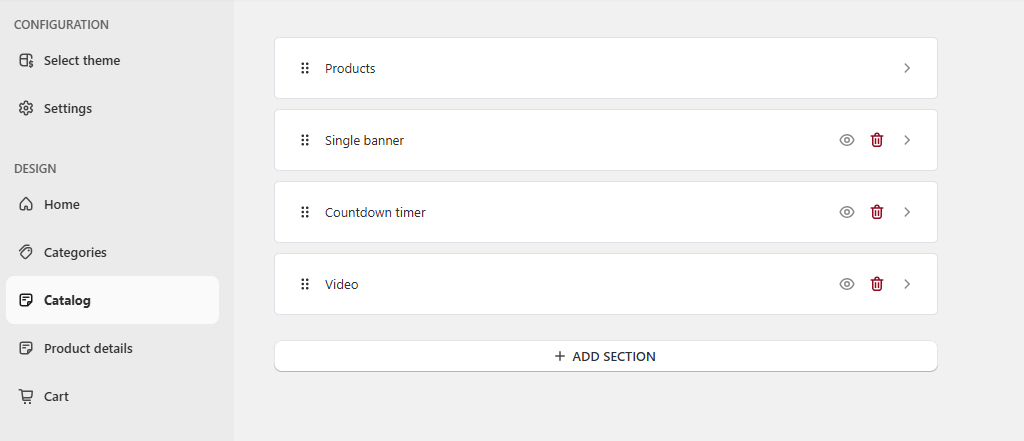
1. To design the catalog page, we have a total 3 widgets at the moment in our app.
1. Countdown Timer
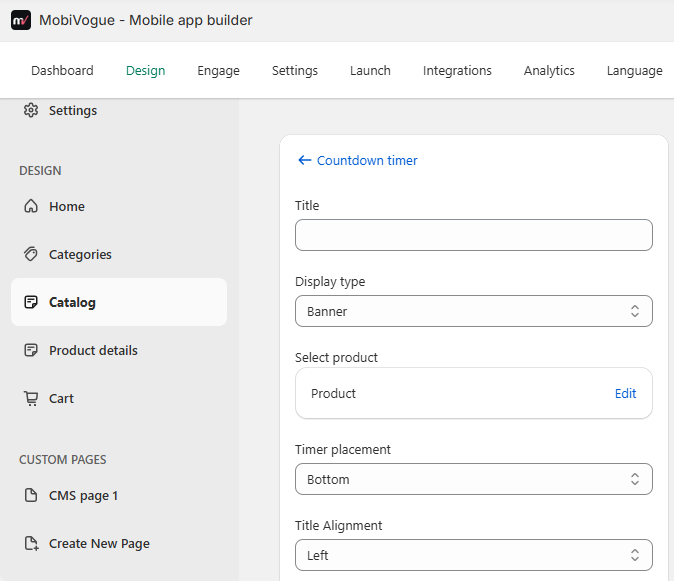
1.1. Title: This field will be used to display the title for the countdown time section.
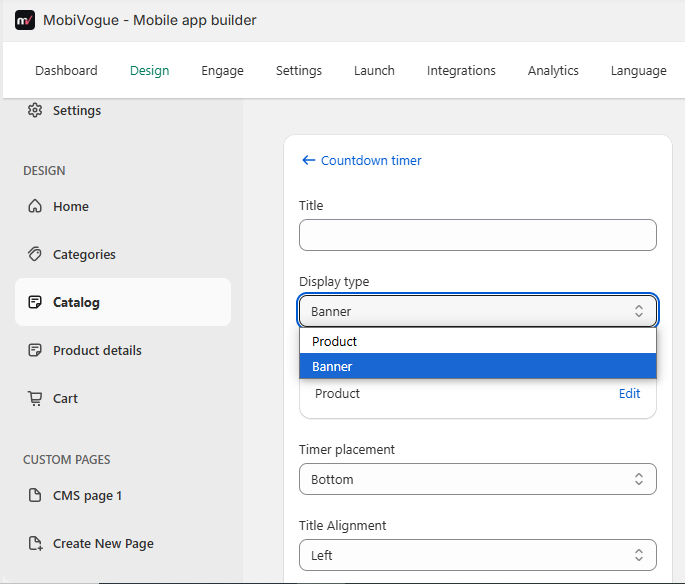
1.2. Display Type: There are two options:
Banner: If you want to display the banner image in the countdown timer then select banner type.
Product: If you want to display the product in the countdown timer then select the product type.
1.3. Select product: You can select the product to display in the countdown timer box from here.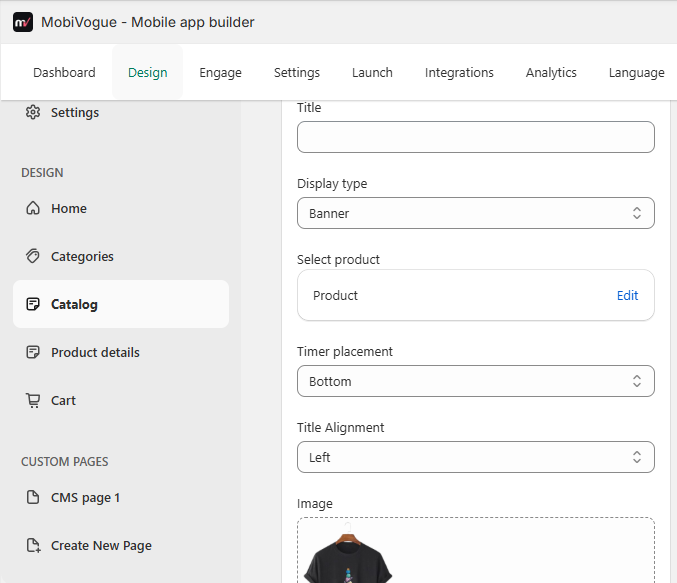
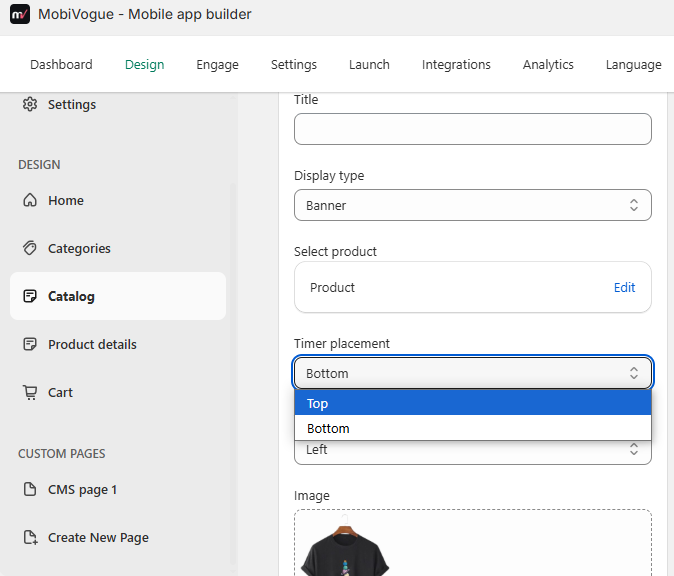
1.4. Timer Placement: There are two options for the placement of timer:
Top: It will display the timer on top.
Bottom: It will display the time on bottom.
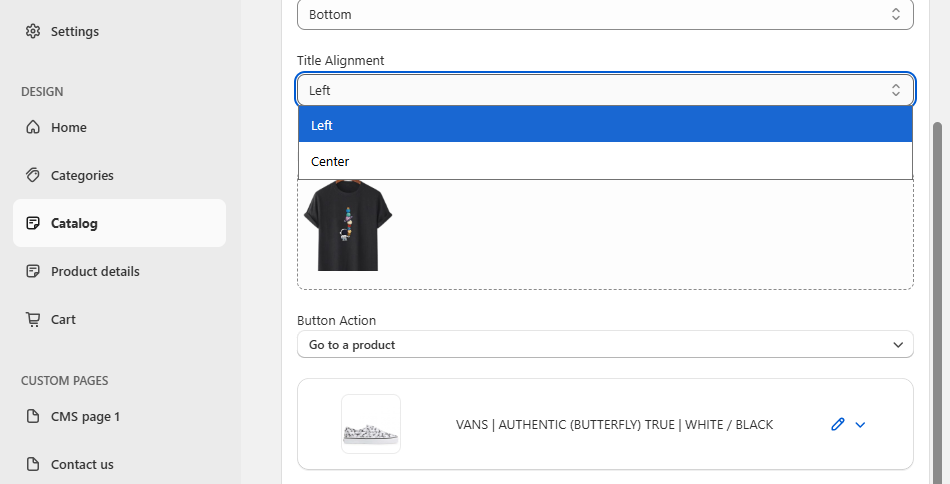
1.5. Title Alignment: There are mainly two options.
Left: It will display the title on the left side.
Center: It will display the title in the center of the screen.
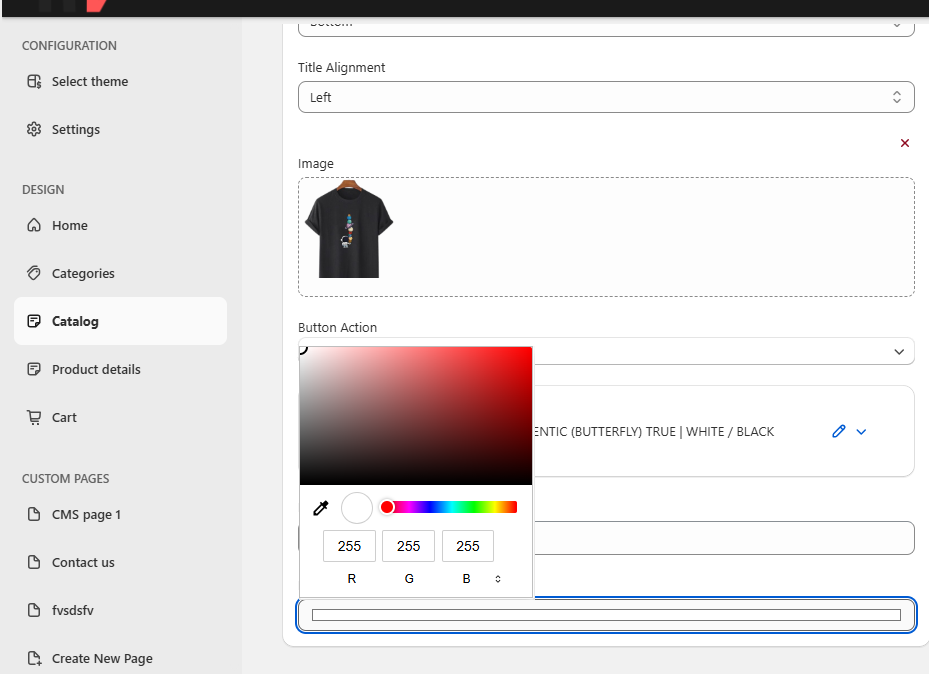
1.6. Image: The image for the countdown timer can be set from here.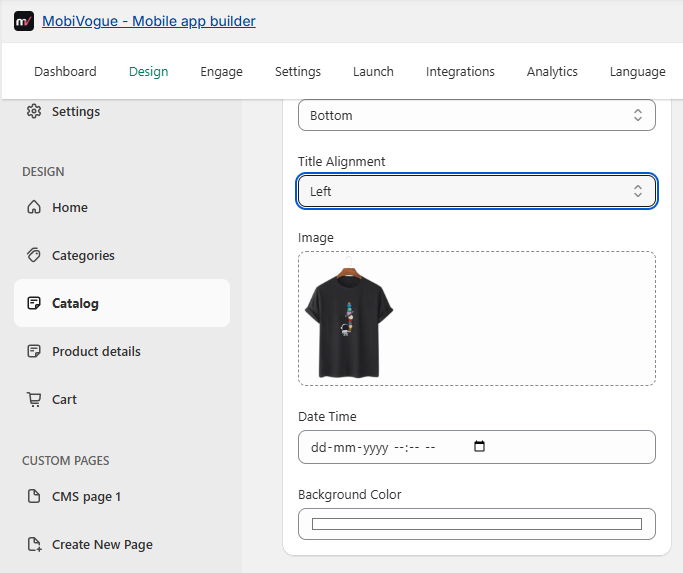
1.7. Date Time: The value of the date & time in the count down time can be set from here.
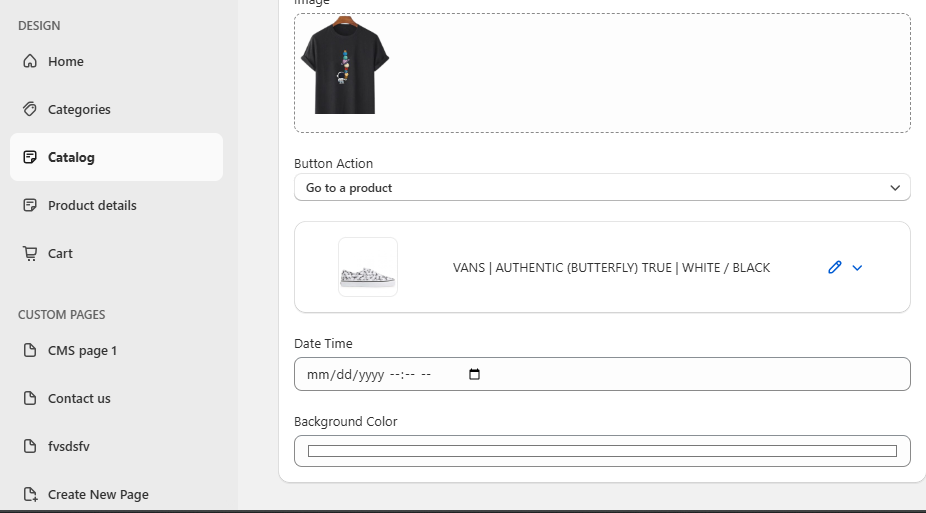
1.8. Background color: It will set the background color of the whole section.
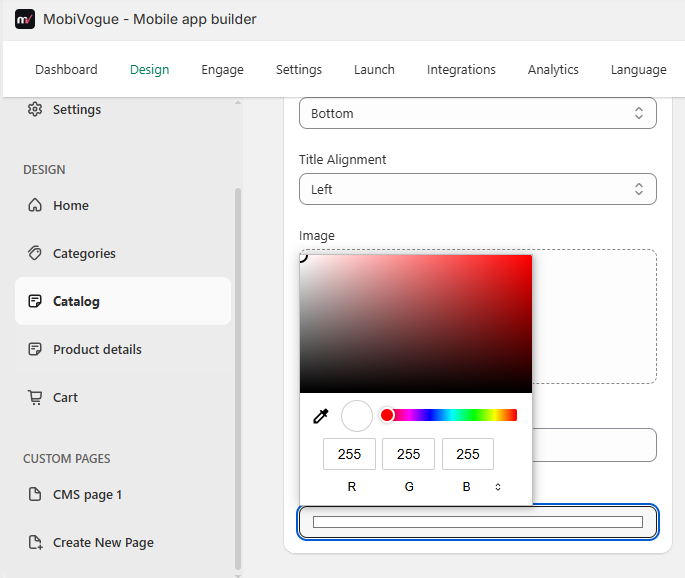
2. Image carousel
2.1. Title: This field will be used to display the title for the image carousel section.
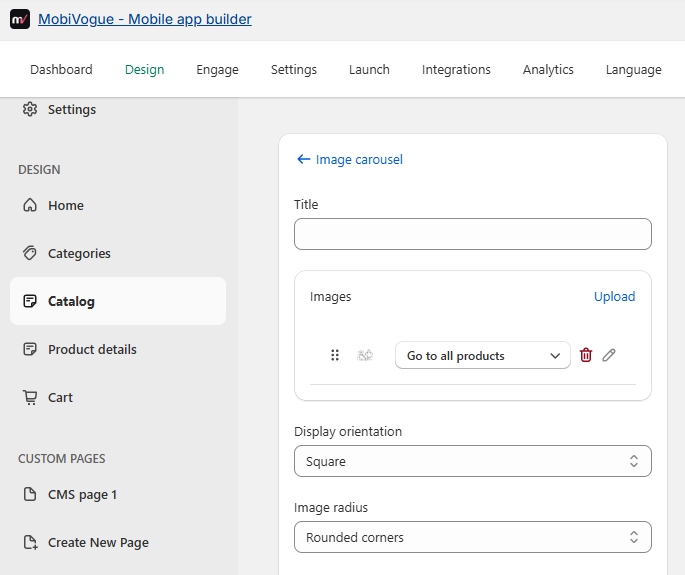
2.2. Images: This field allows us to upload one or more images and we can set redirection links for these images. The images can also be edited or deleted from this field.
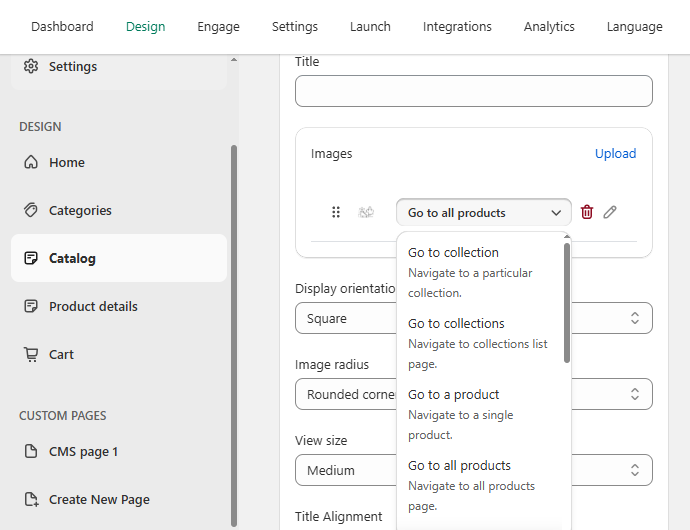
2.3. Display Orientation: There are three options:
- Square: It will display the square-shaped image of the uploaded image.
- Vertical: It will display the vertical shape image of the uploaded image.
- Horizontal: It will display the horizontal shape image of the uploaded image.
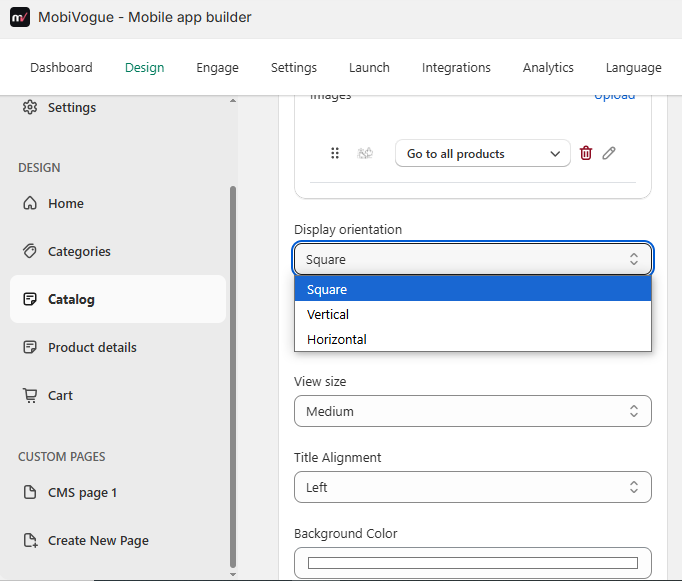
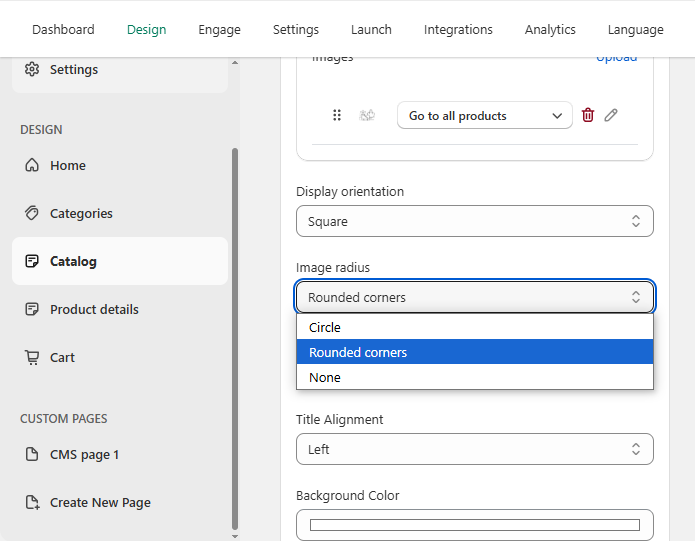
2.4. Image Radius: There are mainly three options.
- Circle: It will display the Circle shape image of the collection.
- Rounded corner: It will display the Rounded corner image of the collection.
- None: It will display the default shape image of the collection image which is selected in display orientation.
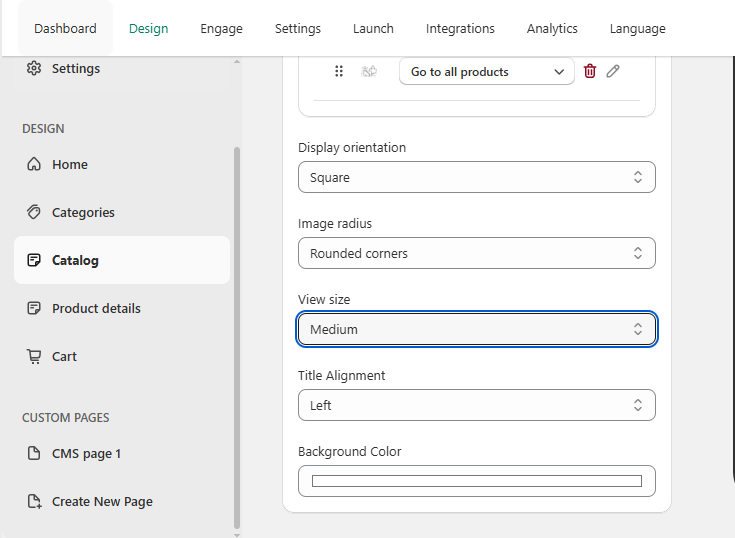
2.5. View size: There are mainly three options.
- Small: It will display the small size image of the collection.
- Medium: It will display the medium size image of the collection.
- Large: It will display the large size image of the collection image which is selected in display orientation.
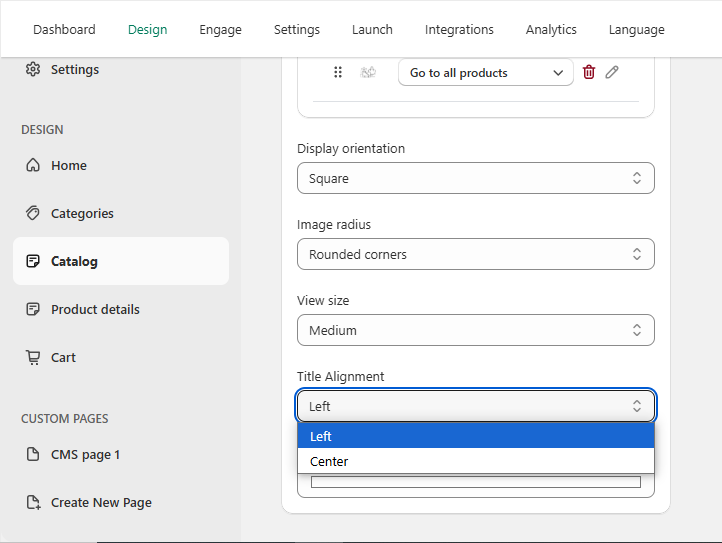
2.6. Title Alignment: There are mainly two options.
- Left: It will display the title on the left side.
- Center: It will display the title in the center of the screen.
2.7. Background color: It will set the background color of the whole section.
3. Video
3.1. Title: This field will be used to display the title for the video section.
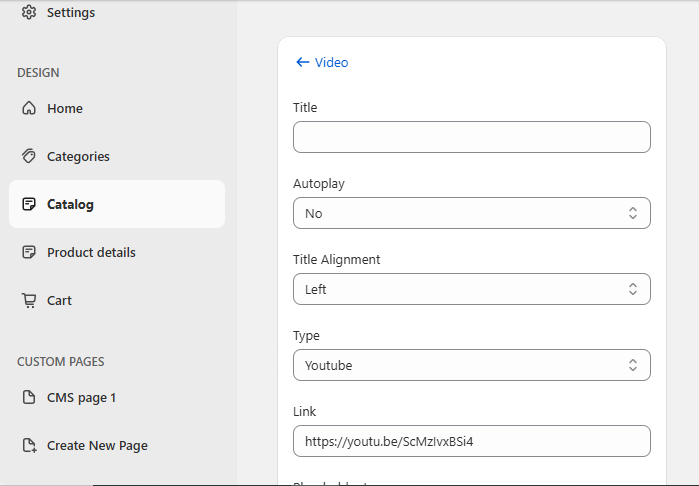
3.2. Autoplay: It will set the video auto play option “Yes” or “No”. If its selected as “Yes” then the video will be in autoplay otherwise, the video will not be autoplay.
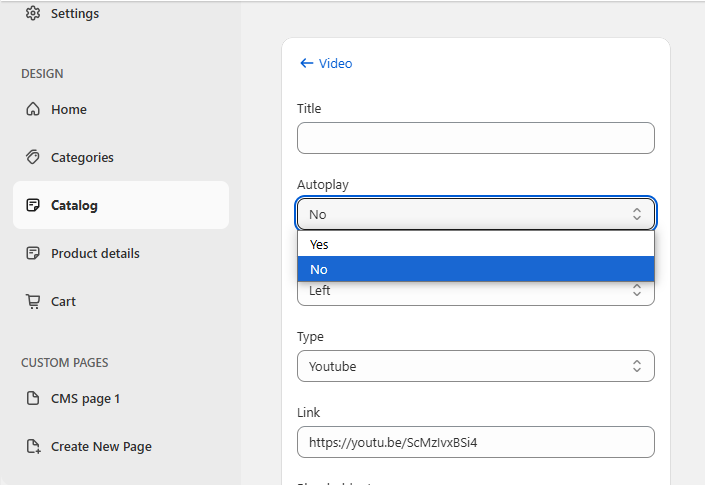
3.3. Title Alignment: There are mainly two options.
- Left: It will display the title on the left side.
- Center: It will display the title in the center of the screen.
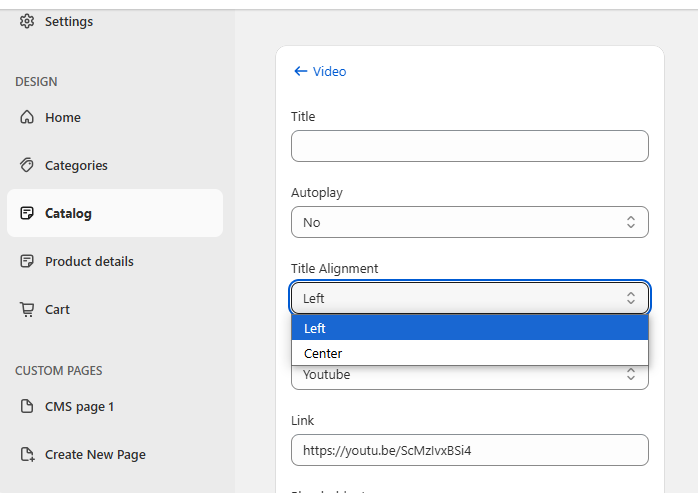
3.4. Type & link: There are mainly two options.
Youtube: It will allow you to put youtube video link in link field to view for the visitors.
Custom: It will allow putting the custom URL in the link field of the video for the visitors.
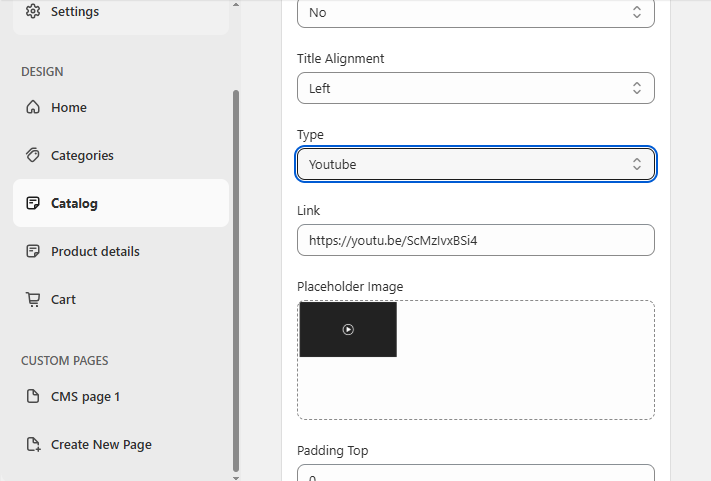
3.5. Placeholder Image: It will allow to use the given placeholder image for the video.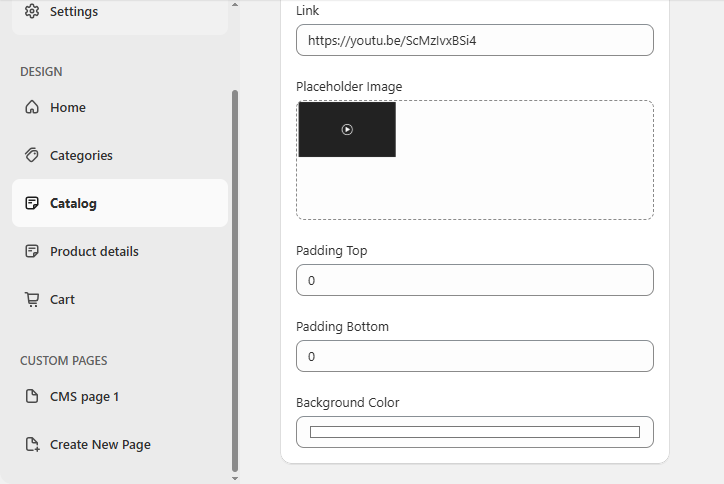
3.6. Padding top and Padding bottom: It will leave space before and end of the section as per the pixel value given in the backend.
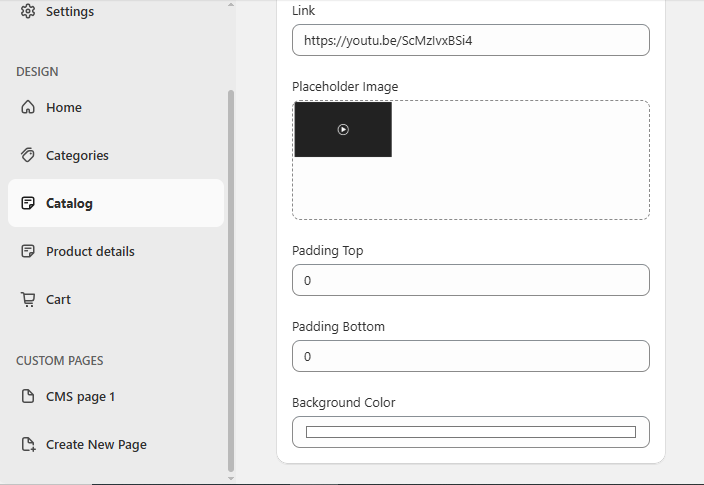
3.7. Background Color: It will set the background color of the whole section.
4. Single Banner
4.1. Title: This field will be used to display the title for the single banner section.
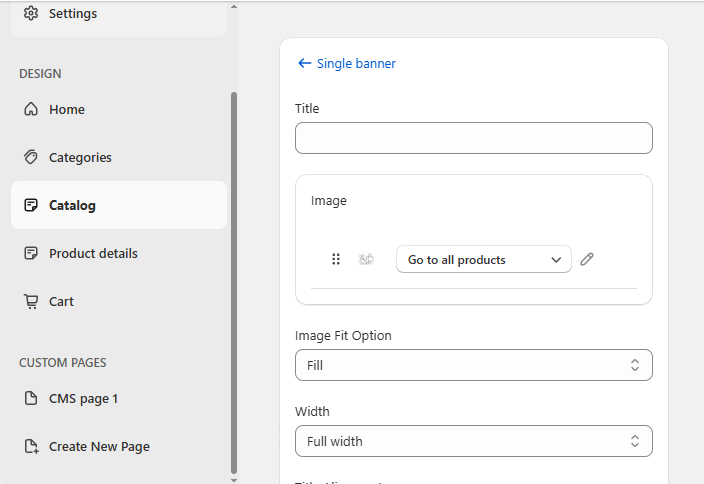
4.2. Images: This field will be used to upload the images and those images are also draggable to top or bottom side. There are also redirection options for this images.
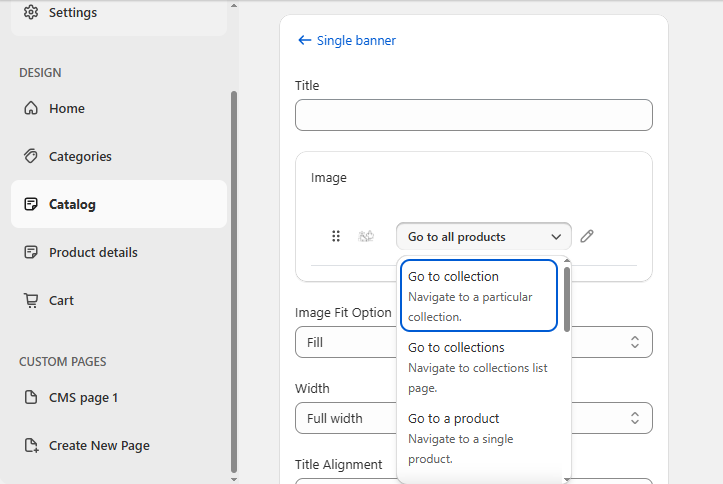
4.3. Image Fit Option: There are three options here:
Fit: Scales the image to fit within the container while maintaining the aspect ratio (may leave space).
Fill: Stretches the image to fill the container, possibly distorting the aspect ratio.
Cover: Scales the image to cover the entire container while maintaining the aspect ratio (may crop edges).
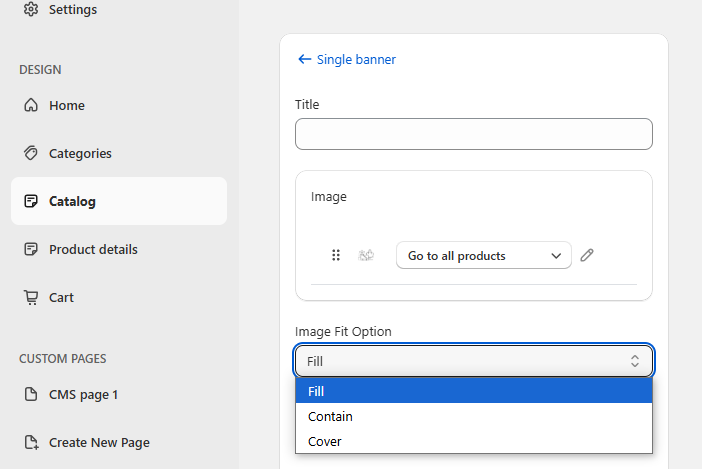
4.4. Width: This field will show all collections or manual collections in front.
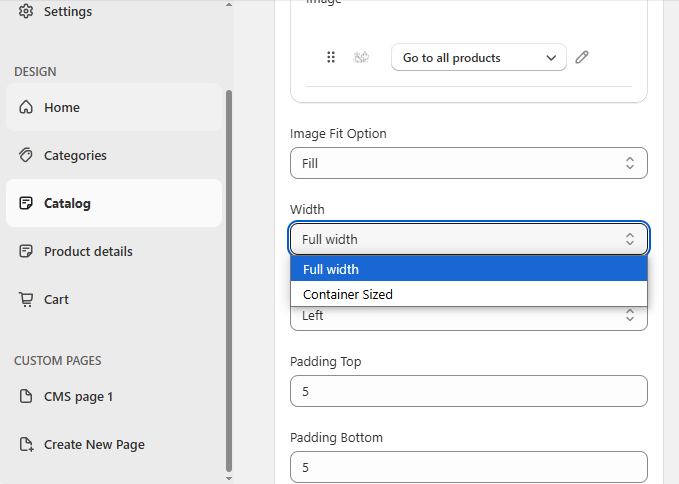
4.5. Title Alignment: There are mainly two options.
- Left: It will display the title on the left side.
- Center: It will display the title in the center of the screen.
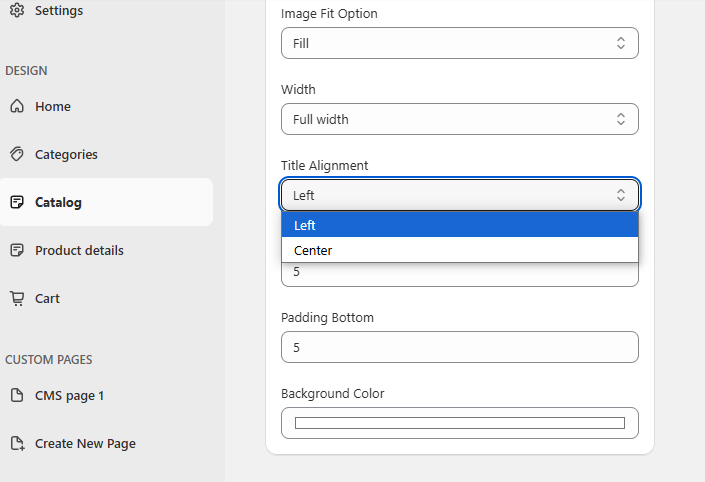
4.6. Padding top and Padding bottom: It will leave space before and end of the section as per the pixel value given in the backend.

4.7. Background Color: It will set the background color of the whole section.
5. Products
5.1. Title: This field will be used to display the title for the products.
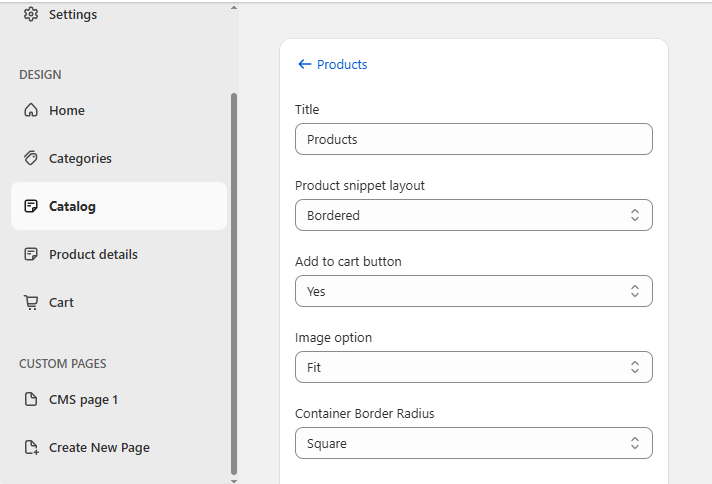
5.2 Product snippet layout: There are two options:
Bordered: It will show a border around the product box.
No-bordered with bg color: It will take the background color without a border.
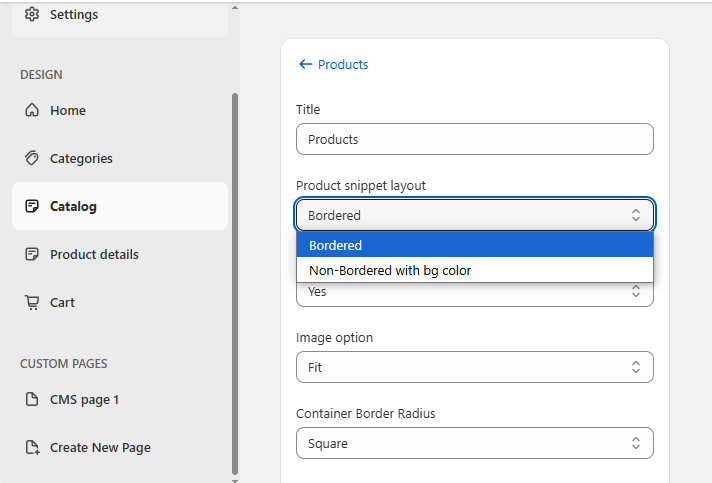
5.3. Add to cart button: If you selected “Yes” from the dropdown then it will show the “Add to cart” button just below the price in the product grid otherwise it will not show the “Add to cart” button.
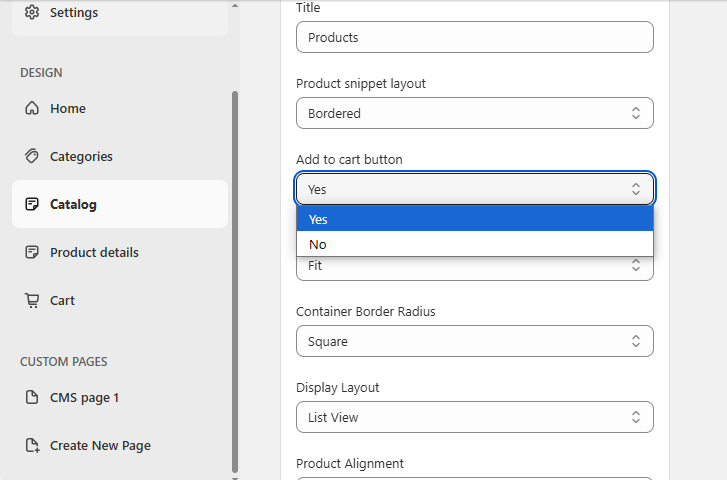
5.4. Image option: There are three options:
Fit: Scales the image to fit within the container while maintaining the aspect ratio (may leave space).
Fill: Stretches the image to fill the container, possibly distorting the aspect ratio.
Cover: Scales the image to cover the entire container while maintaining the aspect ratio (may crop edges).
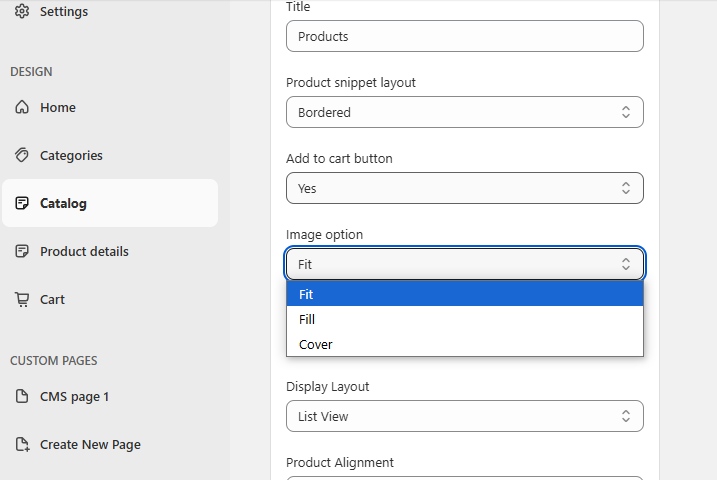
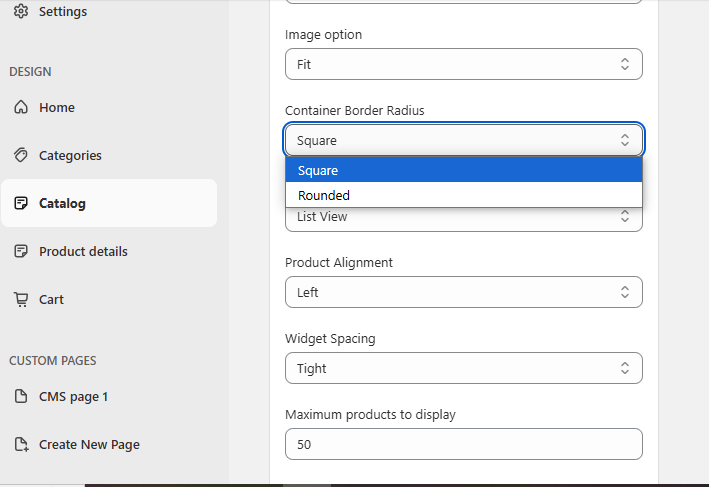
5.5. Container Border Radius: There are two options:
Square: It will show the square-shaped border around this section.
Rounded: It will show the square-shaped rounded corner around this section.
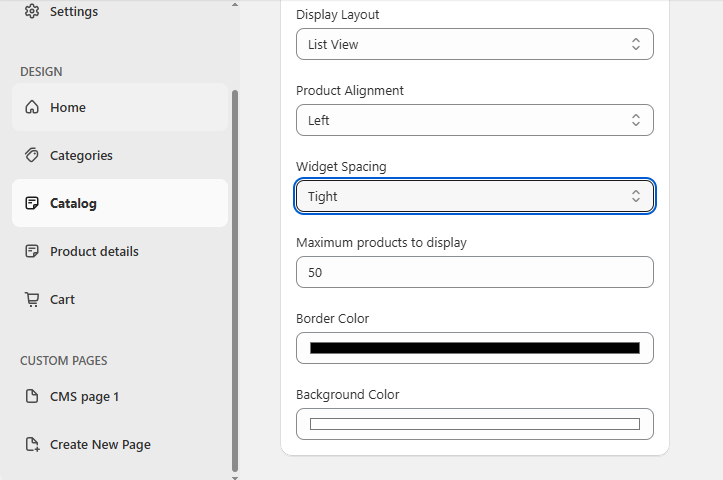
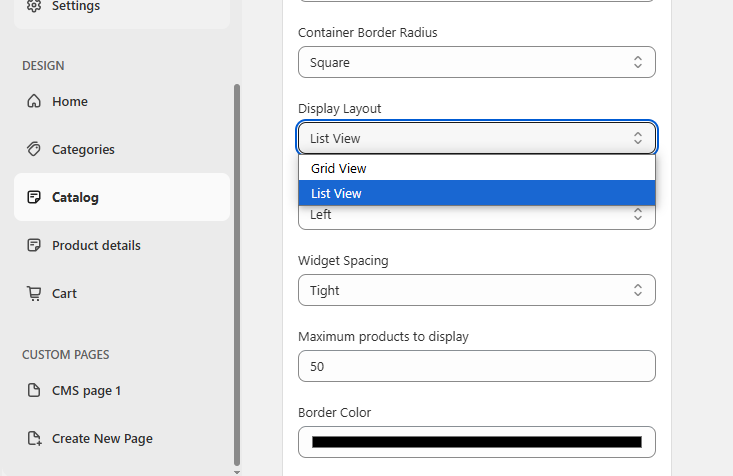
5.6. Display Layout: There are two options:
Grid Layout: It will show the products in grid view.
List Layout: It will show the products in list view.
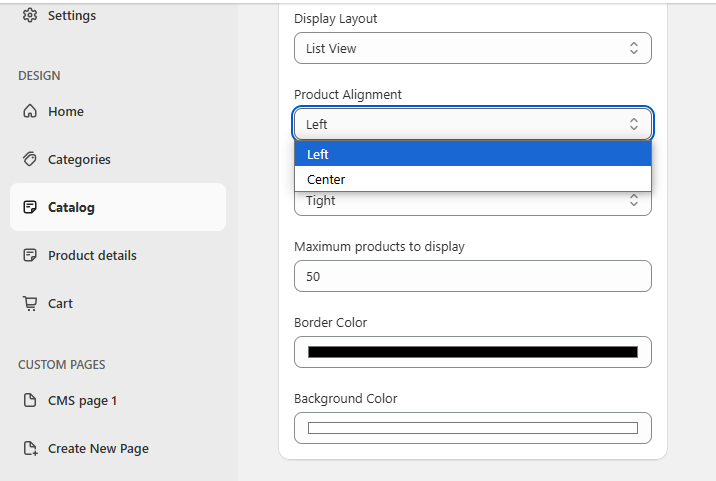
5.7. Product Alignment: There are two options:
Left: It will start the product title from the left side of the box.
Center: It will start the product title from the center of the box.
5.8. Widget spacing: There are two options:
Tight: It will show all product cards very close to each other.
Loose: It will show all the product cards by keeping some space between them.