Custom Page
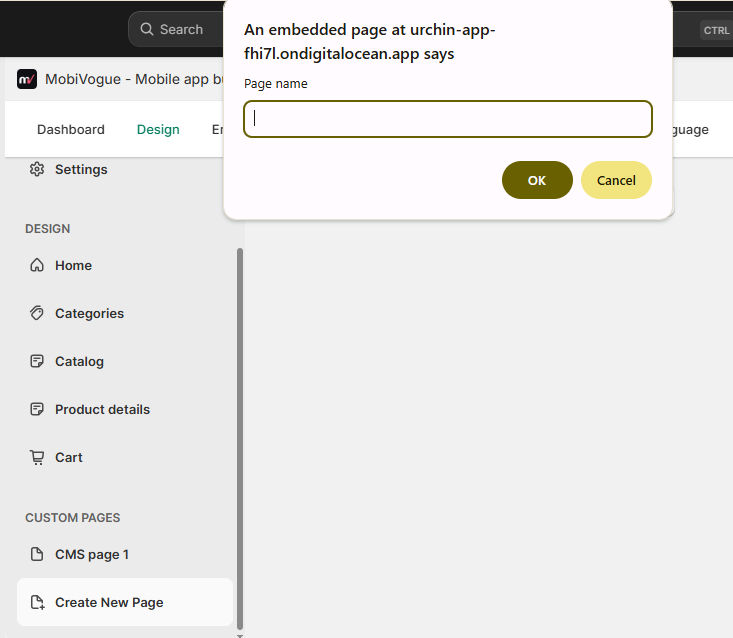
1. Add new custom page
If you wish to add custom pages to your application that are not available by default in our app, you can create them by clicking on the “Create New Page” button under the Custom Pages tab.
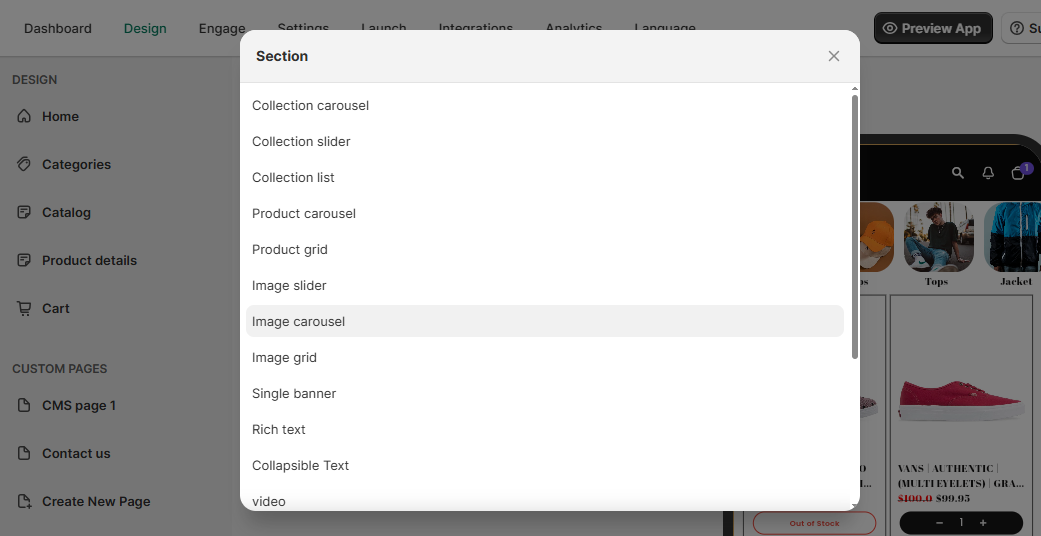
We support all 18 sections available on the home screen, which are also accessible for newly created custom pages.
2. Section options in custom pages
We support all 18 sections available on the home screen, which are also accessible for newly created custom pages.
3. Linking custom pages in App
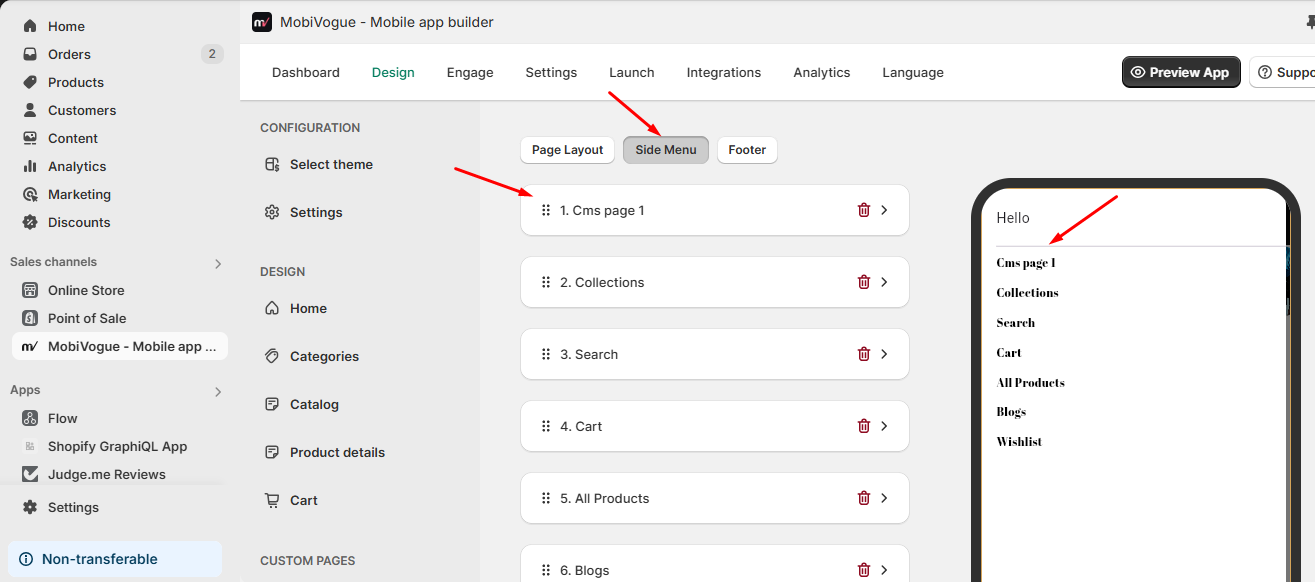
You can link these custom pages to side menu of our app.
4. Custom page options
There are following options in custom page navigation:
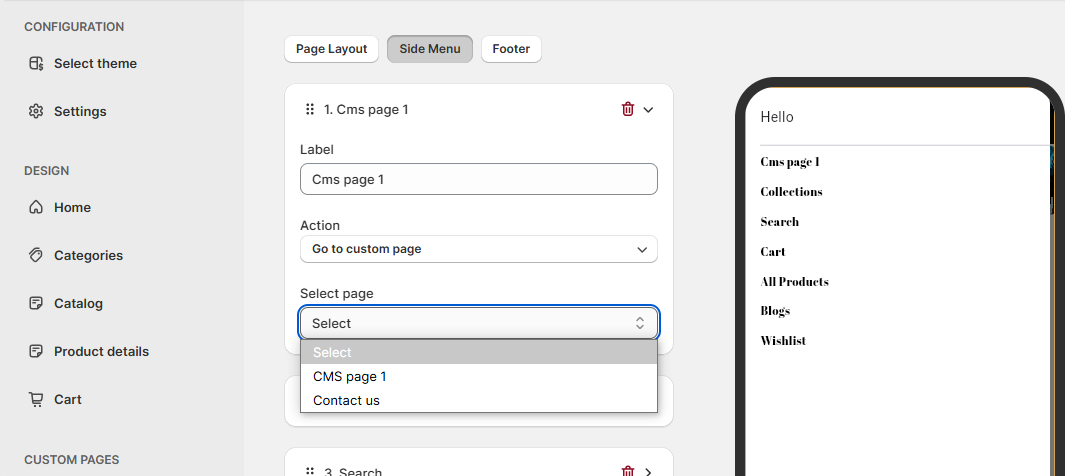
Label: It will show the given name in the navigation
Action: Clicking on the label will redirect the visitor. To direct the visitor to a custom page, please select the “Go to Custom Page” option.
Select Page: From the given dropdown, you can select the page which you want to display on the click of the given label.